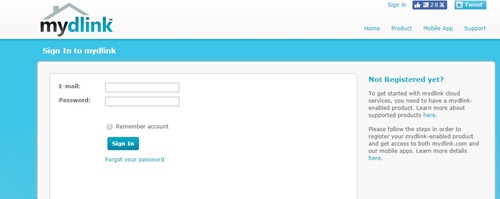
Step 1: Go to mydlink portal www.mydlink.com, and sign in to mydlink.
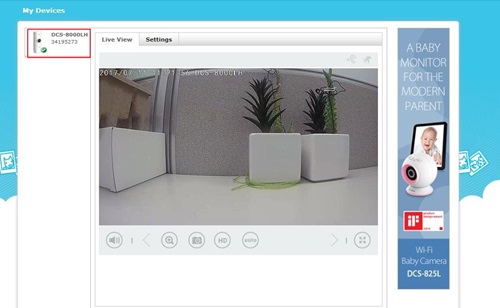
Step 2: Select your Wi-Fi camera device displayed in the device list. Then, click on the Settings tab for your camera.
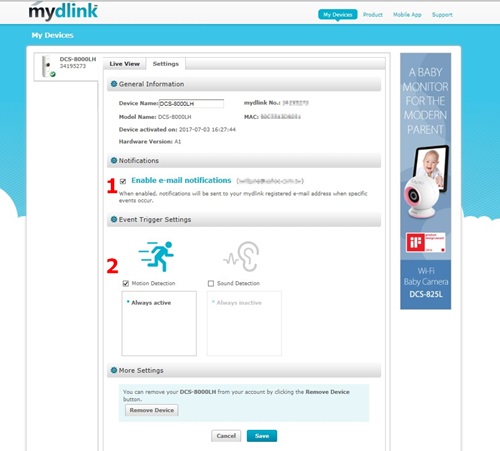
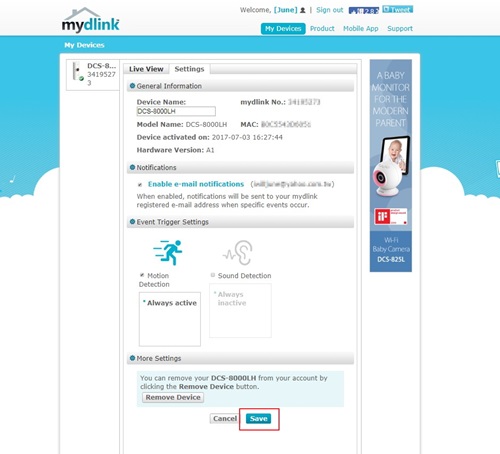
Step 3: Place a Check next to the Enable e-mail notifications box to allow notifications can be sent to your mydlink registered e-mail address,and the Motion Detection box to enable motion detection.
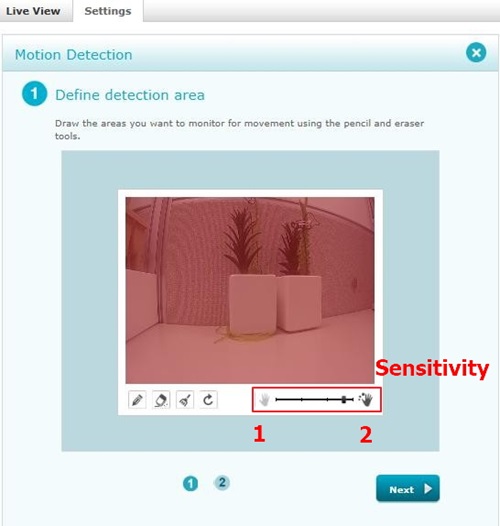
Step 4: Use your mouse to click and drag on the area that you would like to monitor for motion. Then, select the sensitivity level by moving the slider left or right to the sensitivity percentage you want. The higher the percentage the more sensitive the detection of movement will be. To continue, click Next.
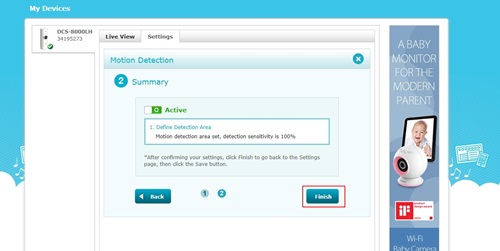
Step 5: Review your settings and click on Back if you need to make some modifications. If settings are correct, click Finish.
Step 6: Place a Check next to the Enable e-mail notifications box to allow notifications be sent to your mydlink registered e-mail address, and the Sound Detection box to turn sound detection on.
Note: If you are using G-mail account you should switch to a lower level of security.