Example: If your device only supports 802.11b or 802.11g and it can’t connect to the router then you can try to change the 802.11 mode to solve the problem. If your devices all use the same 802.11 standard, you can set an ‘only’ mode to improve performance.
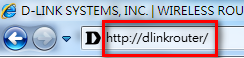
Step 1: Open an Internet browser (such as Internet Explorer) and enter http://dlinkrouter, http://dlinkrouter.local or http://192.168.0.1 into the address bar.
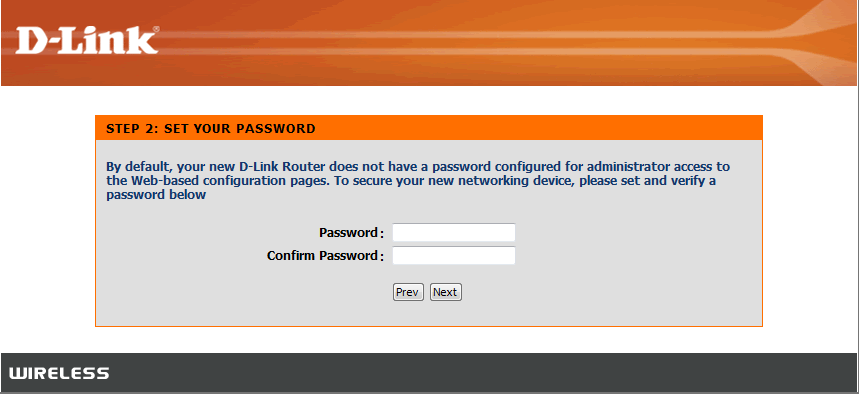
Step 2: Enter your login information in the fields provided. The default username is Admin. Enter your administrator password. If you have not changed the default password, leave this field blank. Click Login.
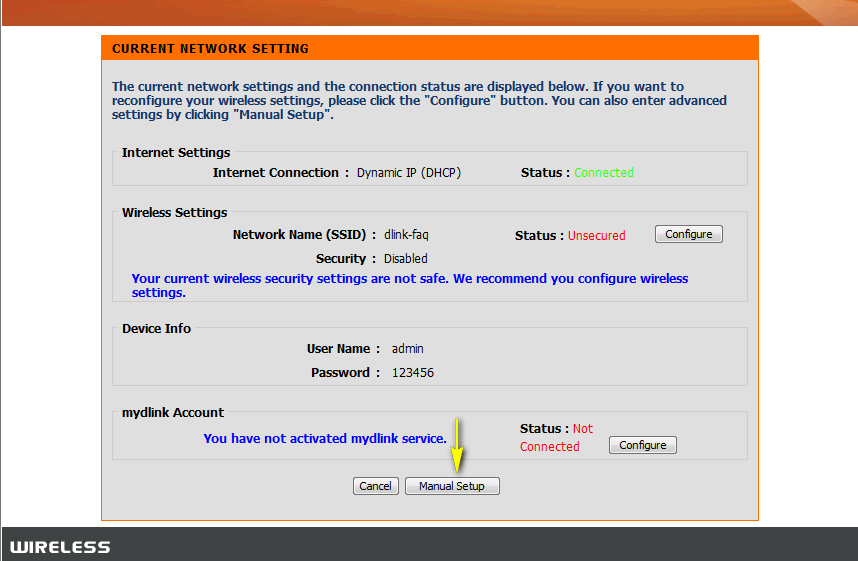
Step 3: Click Manual Setup
Step 4: Click the Advanced tab at the top of the page and click Advanced Wireless Settings from the menu on the left-hand side.
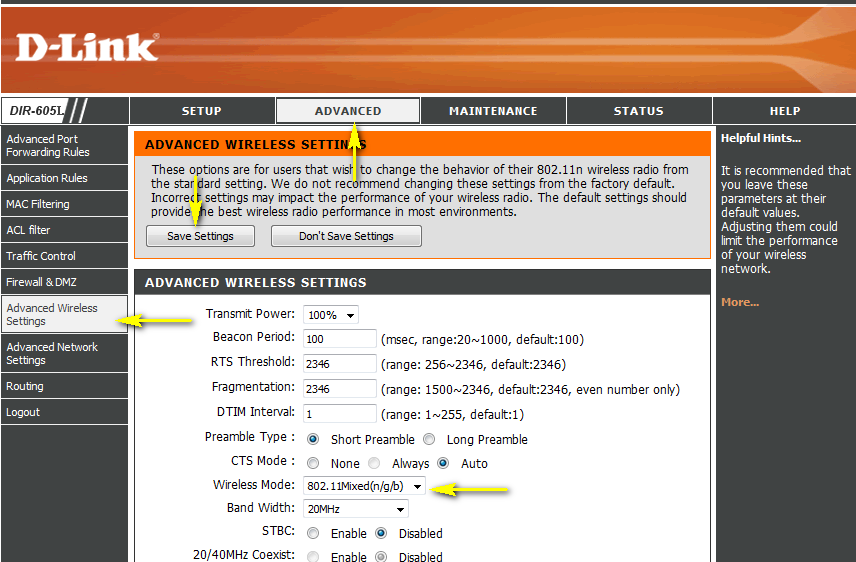
Step 5: Under the Advanced Wireless Network Settings, Choose your desired 802.11 Mode from the drop-down menu.
Step 6: click Save Settings.