If you forgot the admin password, you cannot log in to your AQUILA PRO AI router locally with a web browser. Please choose either of the following methods to reset the admin password.
Method 1: You have set up a Wi-Fi router or range extender with the AQUILA PRO AI app.
The AQUILA PRO AI app allows you to change the admin password without entering the old password. To change the password, please follow the steps below.
Step 1: Connect your mobile device to mobile data or another Wi-Fi network. Make sure that the mobile device is not connected to your AQUILA PRO AI device’s network.
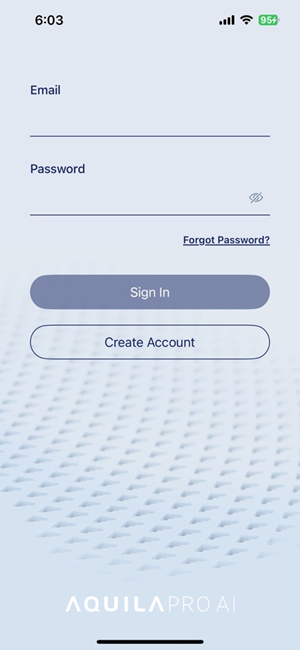
Step 2: Launch the AQUILA PRO AI app and log in with your D-Link account.
Step 3: Tap to choose the Location where your router or range extender is located.
Step 4: Tap the router or range extender you’d like to reset passwords.
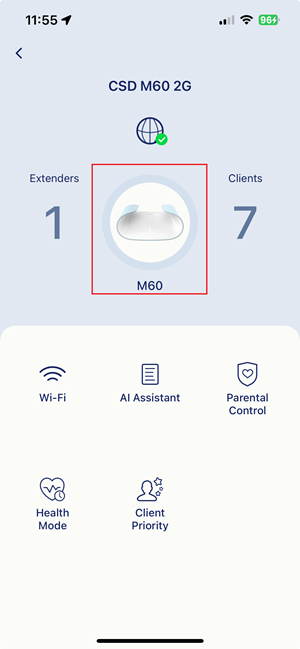
Step 5: Tap the device’s icon in the management page.
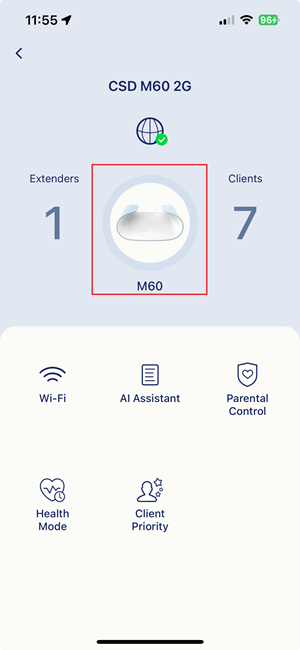
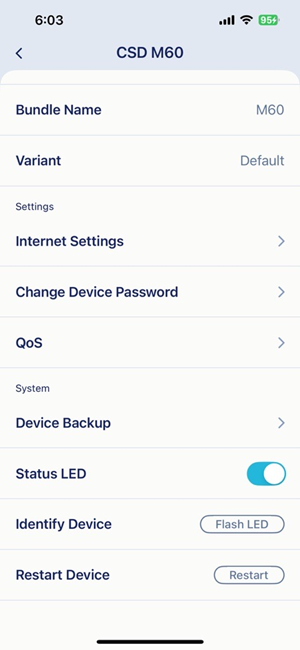
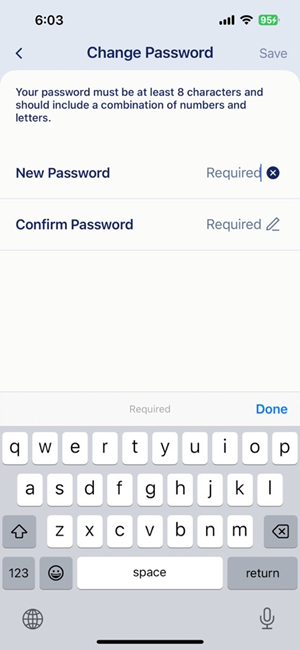
Step 6: Tap Change Device Password and you can now change passwords without entering the old password. Tap Save to apply the new password.
Step 3: Your device will be detected as unmanaged. Select a Location for this device, and then tap Add to add the device to your D-Link account.
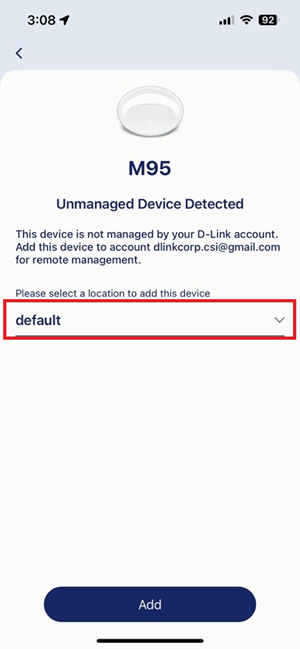
Step 4: Once your device is bound with your account, you can enter the device’s management page. Tap the device icon to configure the device.
Step 5: Tap Change Device Password. Then, you can now change passwords without entering the old password. Tap Save to apply the new password.
Method 3: You only manage your device from the web interface.
A factory reset will delete all personalized settings including the admin password, Wi-Fi network name (SSID), and security settings.
To perform a factory reset on your AQUILA PRO AI device, simply user a paper clip or similar object to press and hold the reset button on the back of the device until the color of Power/Status LED changes. Next time when you log in to your router again, use the default login credentials.