Products
ProductsSolutionsApplications
Resources
An update may erase all the settings. In that case just go to Java's website to test and activate Java on your browser.
When Mac OS is updated to a newer version or updated for Java some users may experience this issue even when they've set this up before. This is a common issue for Mac users.
Steps to follow:
For Safari Browser
Step 1: Go to Safari > Preference > Security. Enable plug-ins/Enable Java/Enable JavaScript.
For Safari 5.x:

For Safari 6.x:

Step 2: Go to Java's website: http://www.java.com/en/download/testjava.jsp and follow up the steps.
Step 3: Close the browser and restart the browser.
Step 1: Go to Firefox > Tools > Add-ons option to enable Java plugin.

Step 2: Go to Java's website: http://www.java.com/en/download/testjava.jsp and follow up the steps.
Step 3: Click the plugin icon on the address bar, then click the Allow and Remember button.

Step 1: Go to chrome://plugins to ensure that Java is enabled. You may want to ensure “Always allowed” is ticked.
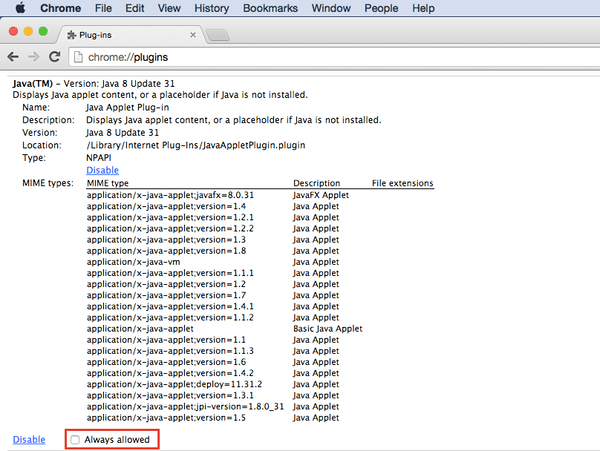
Step 2: Go to Java’s website http://www.java.com/en/download/testjava.jsp and follow the steps to confirm Java is working and that you have the latest version.