Products
ProductsSolutionsApplications
Resources
Introduction
The D-Link M2M (Machine-to-Machine) router is an industrial-grade networking device designed to enable automated data communication between machines without human intervention. When integrated with Wi-Fi functionality, M2M routers can support wireless connectivity for devices in a wide range of IoT and industrial applications. Furthermore, it can also provide Wi-Fi services for guest users and ensure that guest users can only access the Internet without access to sensitive data.
Please note that this example is based on specific prerequisites and topology. D-Link does not guarantee compatibility with all platforms or clients.
Prerequisites
1. D-Link M2M wireless router: This feature is applicable to D-Link M2M models with Wi-Fi support including DWM-313, DWM-530-T, DWM-550-G, DOM-550-GSO, and DTM-550-G.
2. End Devices:
At least one PC with wireless connectivity capabilities.
Network Topology

This topology diagram illustrates an M2M wireless application that ensures PC A can connect with the M2M wireless SSID: guest and access Internet services. Guest users can only access Internet without the permission to access another LAN port of M2M devices.
Wireless SSID Configuration
Prior to wireless configuration, verify the status of the WAN interface and ensure that the M2M router/gateway WAN interface has already secured Internet services.
Go to Status > Basic Network > WAN & Uplink tab

1. Go to Basic Network > Wi-Fi > Wi-Fi tab
2. Enable Wi-Fi Module in 2.4G Wi-Fi Configuration
| Item | Description |
|---|---|
| Wi-Fi Module | The box is checked by default |
| Channel | Select to Auto is suggested |
| Wi-Fi System | 802.11 b/g/n/ac is suggested |
| Wi-Fi Operation Mode | AP Router Mode is selected |
3. Click the Add button in 2.4G VAP List to add the SSID
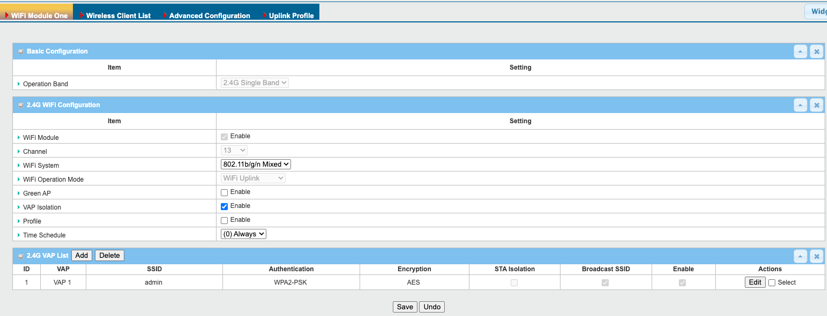
| Item | Description |
|---|---|
| SSID | Guest |
| Max. STA | Keep Unchecked |
| Authentication |
WPA2-PSK |
| Encryption | AES and set the security |
| STA Isolation | Check the box |
| Broadcast SSID | The box is checked by default |
| Enable | The box is checked by default |
Note: It is strongly recommended to change the default SSID name and password for better security.
4. The D-Link M2M device enables the configuration of up to eight SSIDs per device. To set up an additional SSID, please refer to step 3 for the necessary steps.
5. After configuration, remember to click Apply to apply the settings.
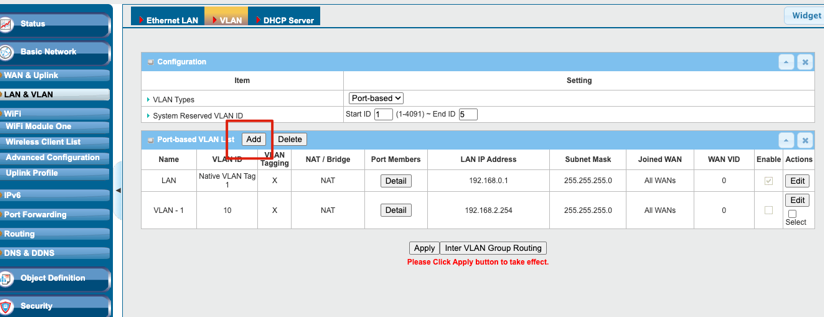
6. In Basic Network > LAN and VLAN > LAN tab, click the Add button to add a new VLAN ID. This setting can prevent guest users from accessing the LAN port of the devices.
7. Assign a new VLAN ID (10) to the guest network and select the port member in 2.4G which the guest SSID belongs to. In this example, we use VAP-2.
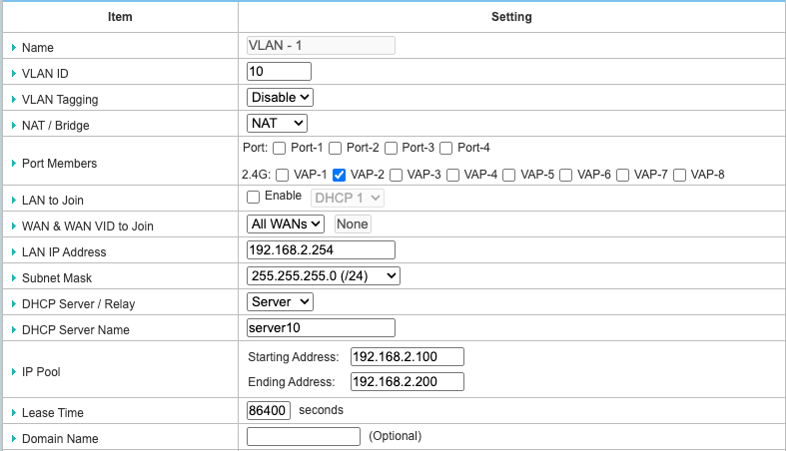
| Item | Description |
|---|---|
| VLAN ID | Type in 10 |
| Internet Access | The box is checked |
| Port Members | Check the VAP number box for the SSID: guest |
| Bridge Interface | DHCP 1 |
| Save | N/A |
8. Click save to apply the settings.
Test Result
1. Following the configuration steps outlined above, you can proceed with verification to ensure its proper functionality.
2. In PC A, connect to the SSID: guest with the password 1234567890.
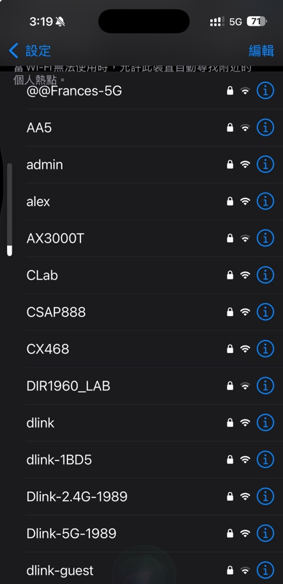
3. After the connection is established, PC A is permitted to ping 8.8.8.8.
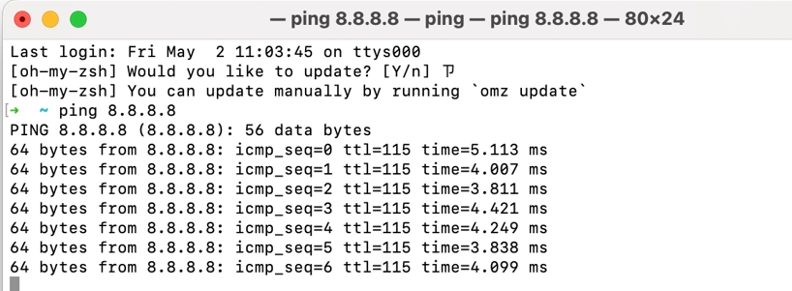
4. But they cannot ping PC B, which is connected to the M2M router’s LAN port.