Products
ProductsSolutionsApplications
Resources
Introduction
Furthermore, prioritizing network services improves resource allocation and utilization across the system. In scenarios involving multiple tasks and simultaneous protocols, D-Link M2M routers can classify and prioritize traffic based on application-specific requirements such as bandwidth demand, latency sensitivity, or reliability. This dynamic allocation strengthens data transmission stability and equips the network to respond more flexibly to sudden surges in traffic or unexpected conditions, providing a resilient network foundation for diverse D-Link M2M use cases.
Please note that this example is based on specific prerequisites and topology. D-Link does not guarantee compatibility with all platforms or clients.
Prerequisites
1. D-Link M2M router with QoS Rule Configuration: This feature is applicable to DWM-550-G, DTM-550-G, and DOM-550-G.
2. End Devices:
At least one PC is connected to D-Link M2M router.
Network Topology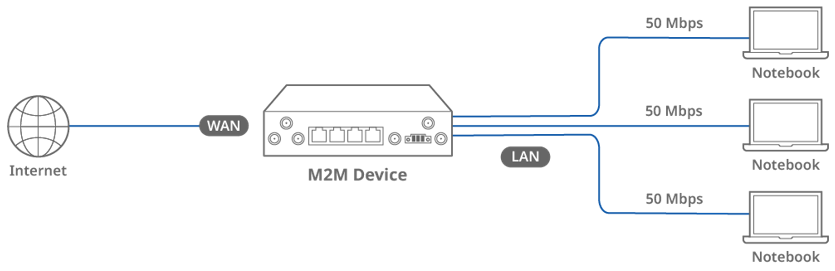
This topology diagram illustrates a QoS application that makes sure PC A and PC B have dedicated Internet bandwidth. For example, PC A's download speed is limited to 100 Mbps.
QoS Configuration
Before QoS configuration, please check WAN interface status and make sure your M2M router/gateway WAN interface already obtained an Internet.
Go to Status > Basic Network > WAN & Uplink tab

1. Enable QoS: Go to the Basic Network > Configuration tab
Enable Flexible Bandwidth Management
2. Click Add in QoS Rule list and set up PC’s MAC address and select Bandwidth in Resource. Then set up 50 to 60 in the control function. Click Save button
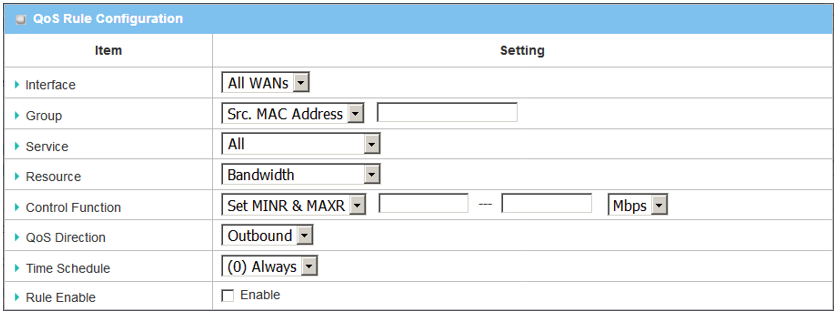
| Item | Description |
|---|---|
| Item | Description |
| Interface | All WANs is selected |
| Group | Select IP |
| Service | All is selected |
| Resource, and Control Function | Select Bandwidth |
| QoS Direction | Select Outbound |
| Sharing Method | Select Group Control |
| Time Schedule | Select (0) Always |
| Rule Enable | Check the box |
| Save | N/A |
Test Result
Following the configuration steps outlined above, you can proceed with verification to ensure its proper functionality.
1. In PC, open the browser and access the speed-test webpage. Verify the Internet speed to approximately 50 Mbps.