Topology Used:
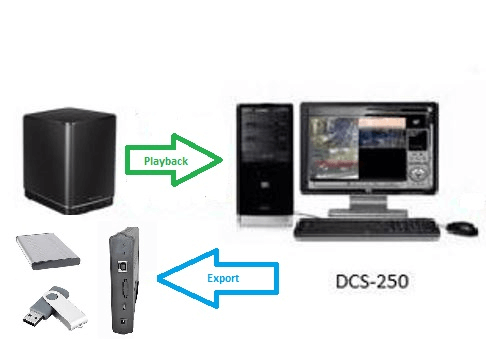
NOTE: This document assumes you have schedule recordings setup and you have video footage ready to view and /or export
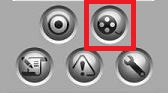
Step 1 – Once the above has been confirmed, then click on the following:
Execute Playback System
Step 2 – There are two methods of selecting previous recordings either by a “Quick Search” or a “Refined Search”.
Quick Search
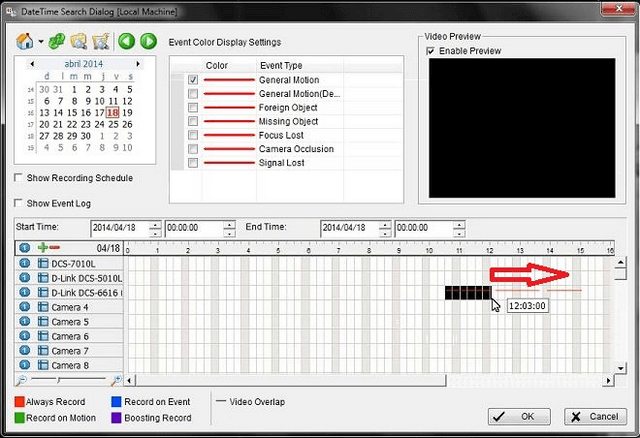
From “Event Color Display Settings”, click “General Motion” to show a red line (as below) and drag over the time-line the recording duration you would like to view
Refined Search:
Select the following in order; Date, General Motion, End Time, Start Time, Select Camera
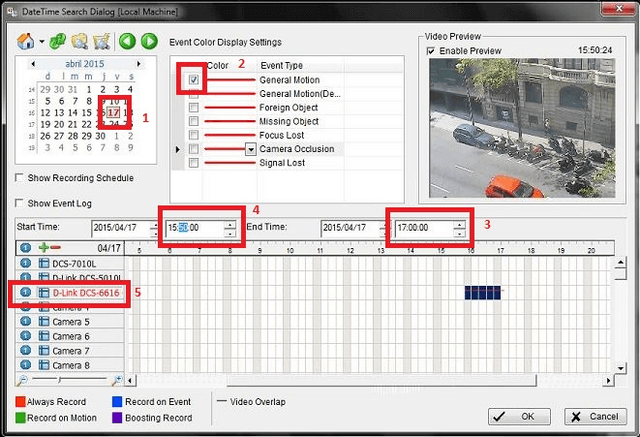
Click “OK”
Step 3 – Click on “Cue In”

Step 4 – Drag the time-bar to a desired time length for the video

Step 5 – Once selected, click “Cue Out”

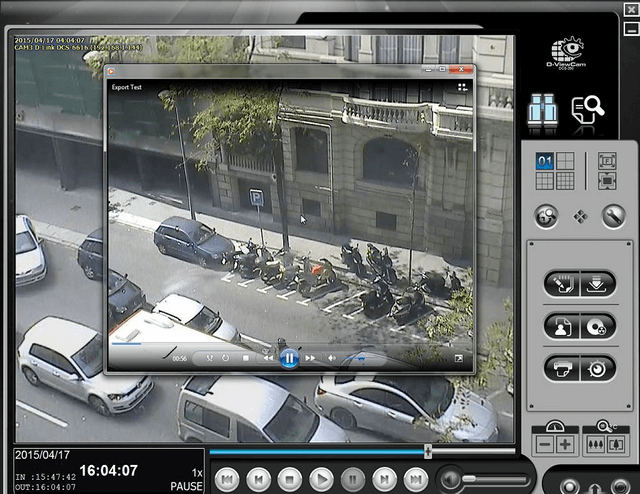
In our example we have selected from 15:47:42 to 16:04:07
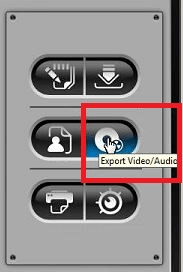
Step 6 – Click “Export Video / Audio”
Step 7 – You may be presented with the following message.
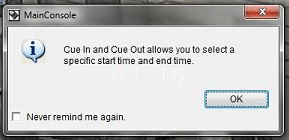
If so, click “OK”
Step 8 – Click on the icon to search for file path  and search to where you would like to export. Give a name, in our example “Export Test” with the extension AVI Files (*.avi)
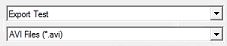
Click “Save as”
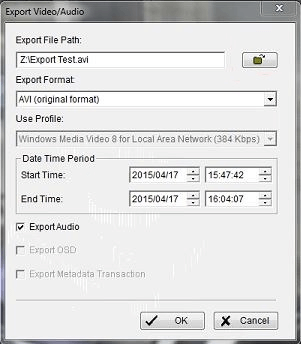
Export Video/Audio Settings:
Export File Path: Z:\Export Test.avi
Export Format: AVI (original format)
Date Time Period:
Start Time: 2015/04/17 15:47:42
End Time: 2015/04/17 16:04:07
Export Audio: Selected (If applicable with camera)
Click “OK”
Step 9 – You will be prompted with the following “Warning”
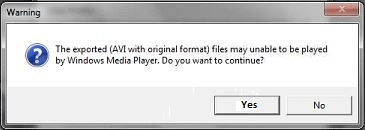
Click “Yes”
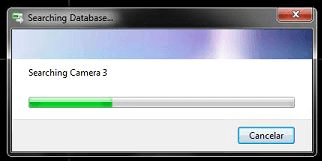
Step 10 – Once agreed, you should see the progress of the .AVI file exporting…
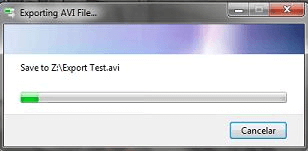
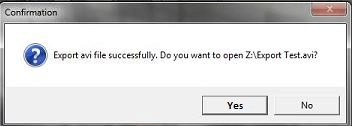
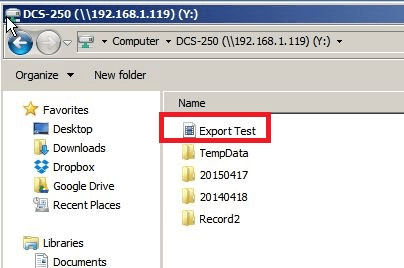
Step 11 – Once exported, you should get the following “Confirmation”. You may open this directly by clicking “Yes” or going directly to where you had previously set to save to in Step 8
Or right-click on the exported .AVI file (In our example it was “Export Test.avi”
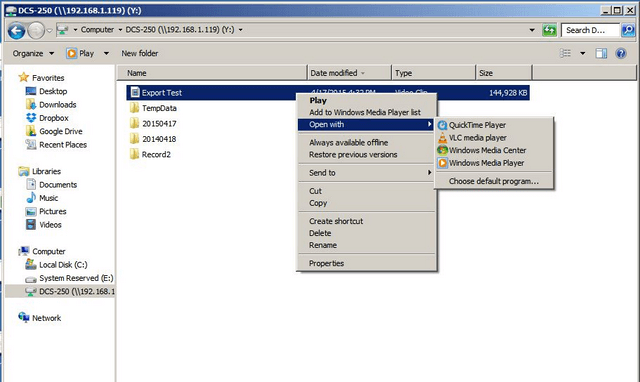
Step 12 – You should see a separate screen showing and playback in progress