
How do I configure motion detection on my DCS-5010L using my Android device?
Step 1 – Open the mydlink Home app.
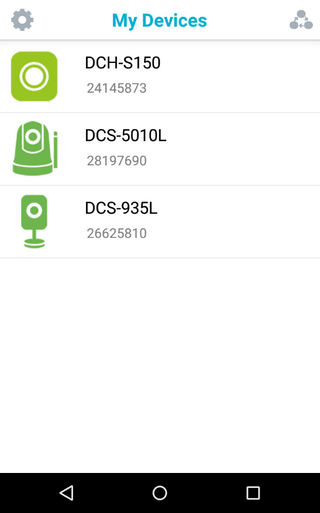
Step 2 – Tap on your camera, which will show the Live View. Tap the live view to see the settings icon.
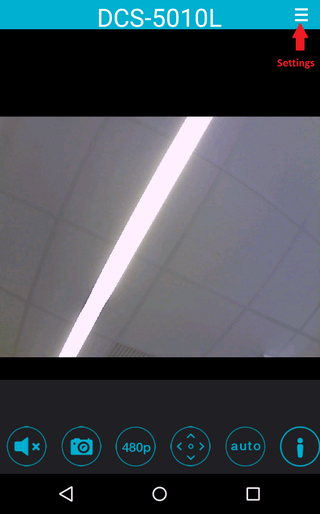
Step 3 – Tap on the Settings icon, to access the settings screen.
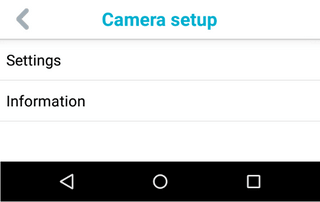
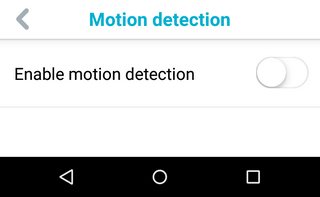
Step 4 – Tap “Settings”, then “Motion detection” to configure the camera’s motion detection.
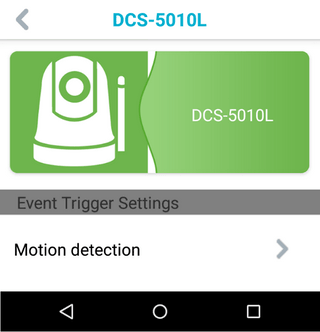
Step 5 – Tap “Enable motion detection” to enable the motion detection settings.
Step 6 – Tap “Apply” to save the setting.
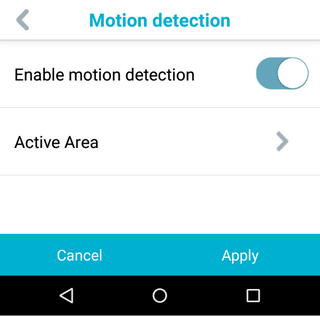
Step 7 – Tap “Active Area” to set the area you want to monitor. Tapping each of the squares will activate that area for motion detection, and will highlight that square in red. You can also alter the sensitivity by swiping the sensitivity bar to the left or right. Tap the grey “<” once you have set the area and sensitivity.
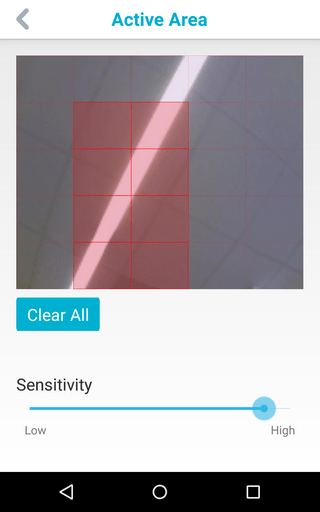
Step 8– Tap “Apply” to save the setting.
Otros usuarios también consultaron:
- How do I setup my DCS-5010L on my Android device? Ver respuesta
- How do I set up PTZ presets in the DCS-5010L? Ver respuesta
- How to See Device Information DCS-5010L with an iPad? Ver respuesta
- How do I see information about my DCS-5010L using my Android device? Ver respuesta
- How to Setup DCS-5010L with an iPad? Ver respuesta