How to setup website filtering?
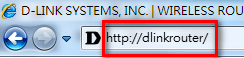
Step 1: Open your web browser and enter http://dlinkrouter or http://dlinkrouter.local or http://192.168.0.1 into the address bar.
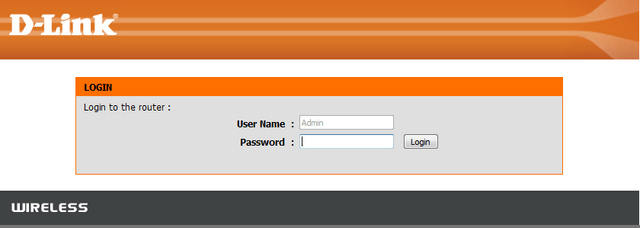
Step 2: The default username is Admin and the password is blank (nothing). Click Login.
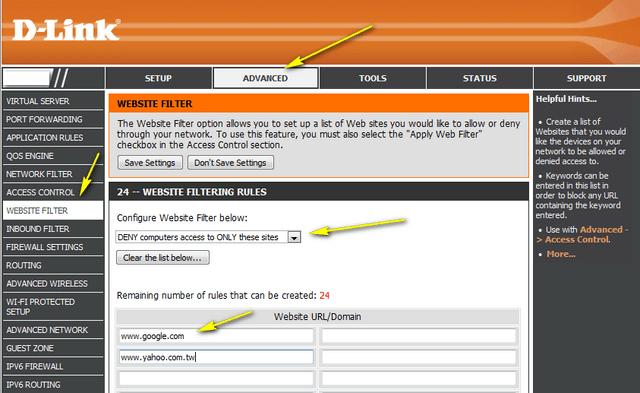
Step 3: Click the Advanced tab on the top then Website Filter on the left side of the screen. Select the option “Deny computers access to ONLY these sites” from Configure Website Fil-ter below. Type the website URLs to be blocked on this router in Website URL/Domain columns. Click Save Settings when finished.
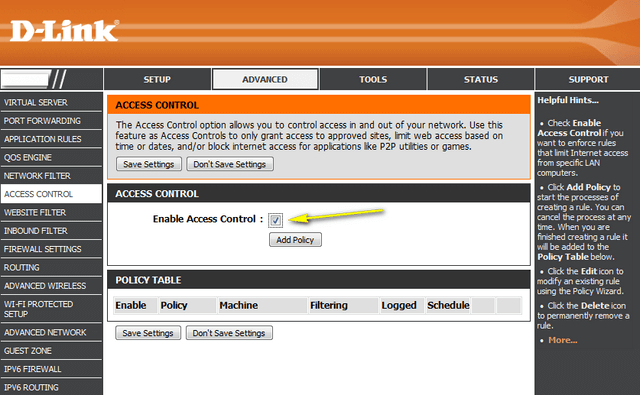
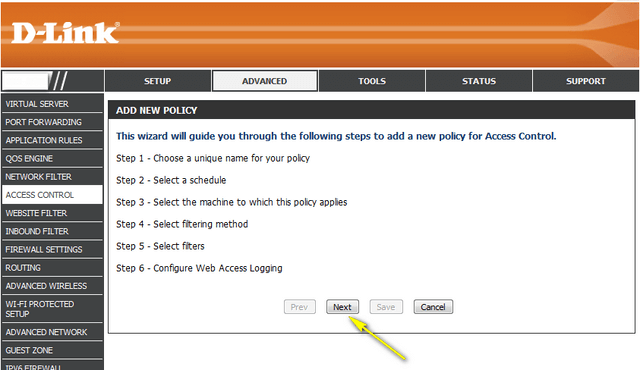
Step 4: Next go to the Access Control tab and check the box to Enable Access Control. On Access Control you will need to set up a policy on the router for the Website Filter. Click Add Policy and follow the wizard.
Step 5: Click Next
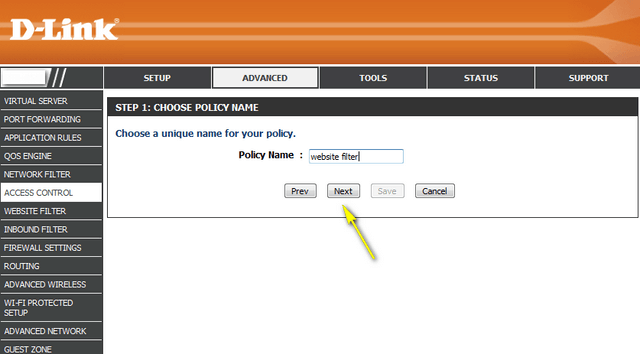
Step 6: Name the policy and click Next.
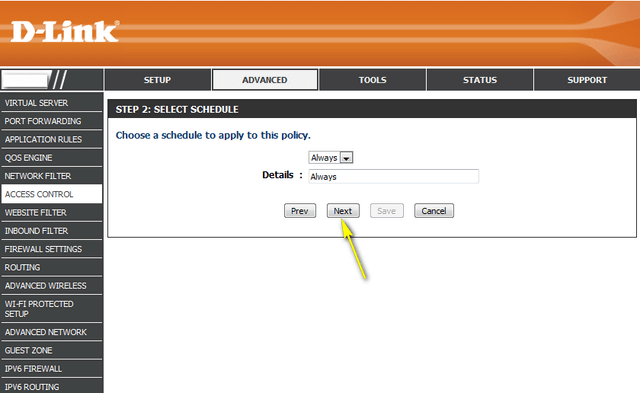
Step 7: Select a schedule and click Next.
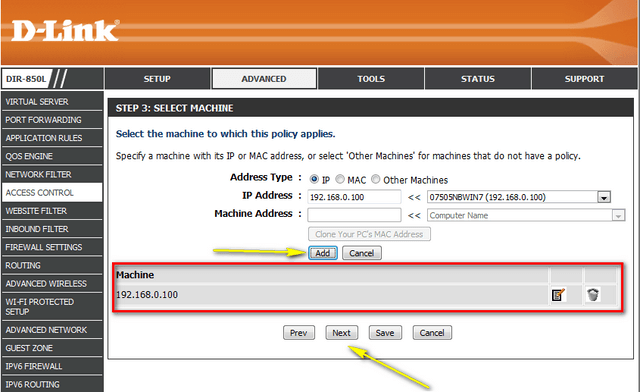
Step 8: Select the machine(s) to which this policy applies by IP or MAC address and click Next.
Step 9: Select Filtering Method and click Next
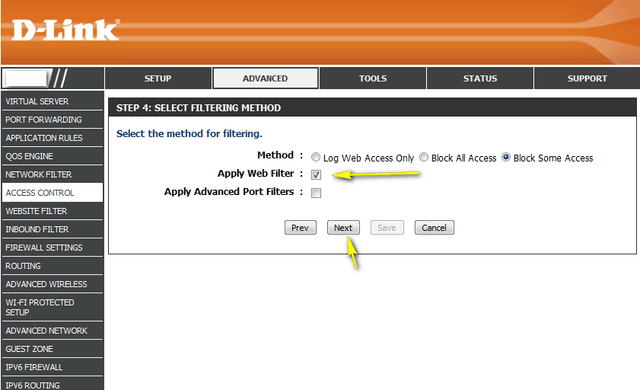
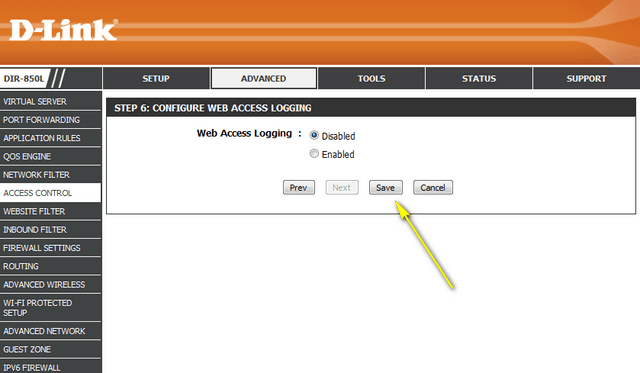
Step 10: Enable or Disable Web Access Logging and click Save.
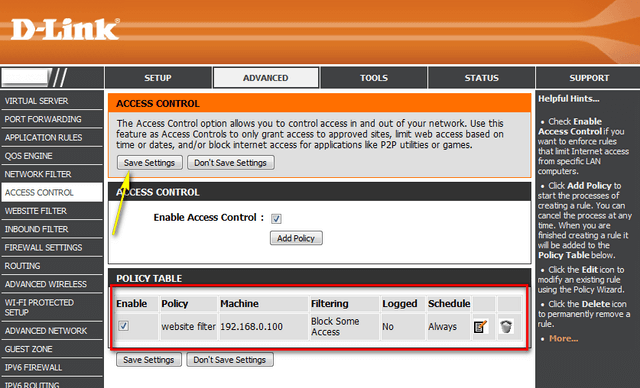
Step 11: You should now see the policy listed under Policy Table. Click Save Settings.
These may also help:
- How do I change the IP Address of my DIR-850L router? Read Answer
- How do I change the SSID network name on my router? Read Answer
- How do I configure port forwarding on my DIR router? Read Answer
- How to configure QoS (Quality of Service) settings on your DIR router? Read Answer
- How to configure SharePort Mobile? Read Answer
- How to configure the shareport web access on your DIR-850L router? Read Answer
- How to enable WEP encryption on your DIR-850L router? Read Answer
- How to back up the DIR-850L router configuration? Read Answer
- How to recover the wireless password for your DIR router? Read Answer
- How to setup and install your DIR-850L router? Read Answer
- How to upgrade the firmware on your DIR-850L router? Read Answer
- How many simultaneous users can my Wi-Fi network handle with DIR-850L? Read Answer
- How do I connect my laptop to my DIR-850L router? Read Answer