GPS Configuration
Introduction
The Global Positioning System (GPS) is a space-based technology. Once you turn on GPS, only four satellites are needed to quickly determine the user's location and altitude on Earth. It is very important to attach the GPS antenna to the device and place it outside (not inside a building). In this example, we will show the GPS configuration rules of M2M devices and enable GPS capability for location-based service applications.
Prerequisites
1. An M2M device with 4G or 5G function
2. With a GPS antenna
3. At least one device:
- A PC, laptop, or tablet is required to configure the M2M device.
- This feature is applicable to the following models:
DWM-530-T, DOM-530-TSO, DTM-550-G
Topology

We use the Visual Syslog tool as an application server and use the Ethernet local network as an example. The application server can run location-based services and collect locations from M2M GPS data. Additionally, it is best to place the GPS antenna in an outdoor environment.
Note: The application server is selected by you. D-Link cannot guarantee compatible functionality.
Configuration
1. GPS Configuration:
Go to Service > Location Tracking > GNSS tab
You can click the Enable and Add buttons to configure the profile.
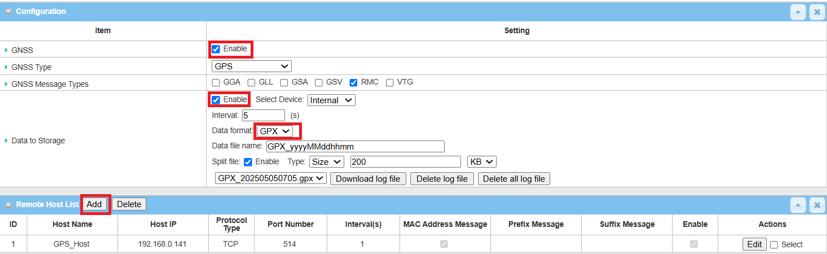
| Item | Description |
|---|---|
| GNSS | Enable the GNSS function |
| GNSS Type | Select GPS |
| GNSS Message Types | Select the RMC GNSS Message Types for transmitting and recording GPS data |
| Data to Storage |
Enable · Select Device Select Internal device to store log data · Interval By default, 5 seconds is set. Value Range: 5 - 60 seconds · Data Format Select GPX data format to store · Data file name Define file name to store · Split Enable Check the Enable box to split large files · Split Size & Unit Define file size and unit for splitting each log file. The default is 200 KB and the minimum is 10 KB · Download log file Select a log file and click Download log file to download through Web |
| Item | Description |
|---|---|
| Host Name | Enter a name for the remote host |
| Host IP | Enter the IP address of application server: 192.168.0.141 |
| Protocol Type | Select the TCP protocol for communicating with the remote host |
| Port Number | Enter the corresponding service port number 514 |
| Enable | Enable |
Go to Status > Administration > GNSS tab
When the GPS status of M2M device is Fixed, the GNSS information screen shows the status of current GNSS positioning information.

Test Result
Please configure the device according to the above environment, then validate to ensure everything works as expected.
1. Expected Test Results:
The application server collects GPS data from the DTM-550-G device. The DTM-550-G transit gateway allows data to be forwarded to the application server via the TCP protocol.
2. Test Results:
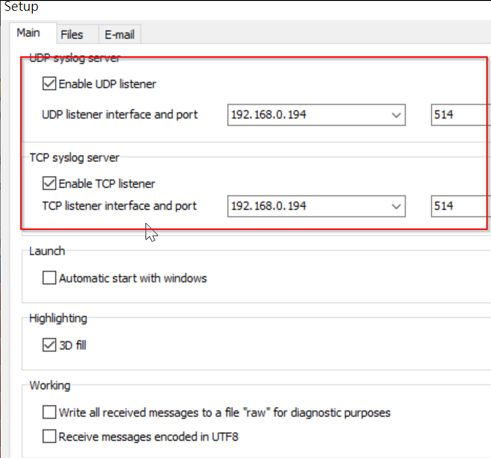
We take the DTM-550-G and the Visual Syslog tool as an example to conduct the following test. According to the DTM-550-G, we set the IP and port on Visual Syslog.
The application server collects GPS data from DTM-550-G via TCP protocol. This is the test result of GPS data collected on Visual Syslog.
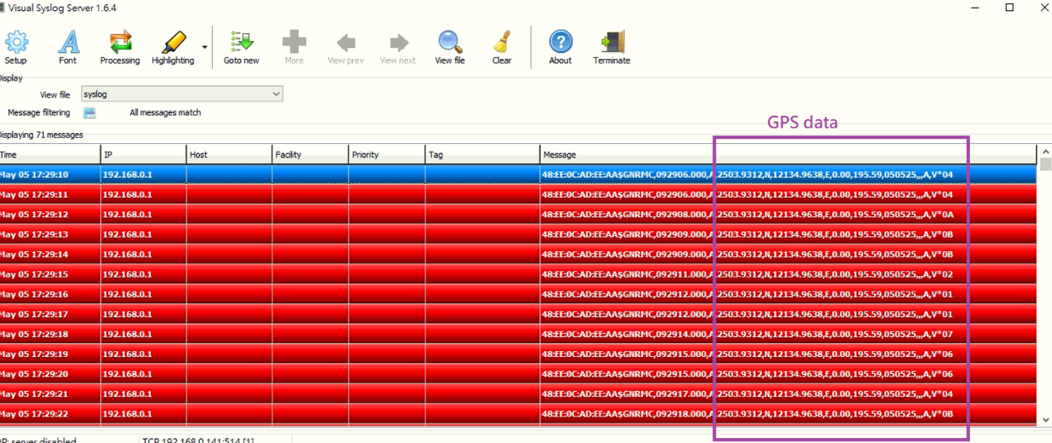
Note: In this example, we use an Ethernet local network and an application server to collect data.