
How to Activate Licenses via Online Activation – DCS-250
Requirements:
• Internet Connection
• D-Link Software License Keys
This example activating the license via “Online activation” and “Input SN”
Step 1 – Click on Start and open “Main Console”

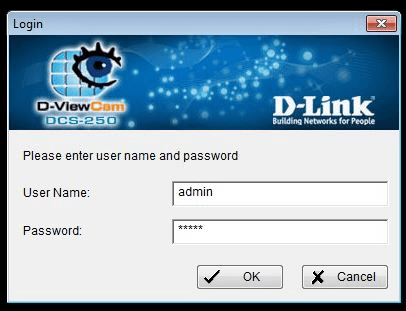
Step 2 – Login
Step 3 – You should be presented with a prompt to register this version (you have a free trial 30 days)
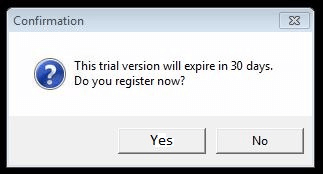
Click “Yes”
Step 4 – Enter the D-ViewCam Plus 32ch VMS license into the “Input SN:” box
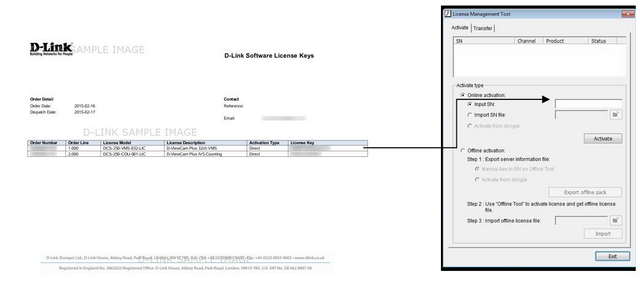
Click “Activate”
Step 5 – You should be presented with the following message. If you agree to this, click “Yes”
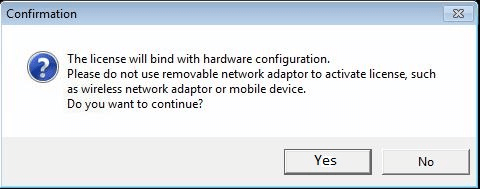
Step 6 – Once agreed, the system will commence connection with the License Server
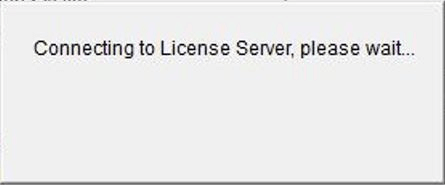
Step 7 – If the activation is successful, you should get the following confirmation
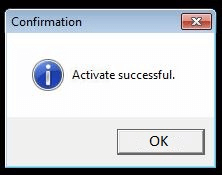
Click “OK”
Step 8 – Once updated, you should see the first license in “License Management Tool” window
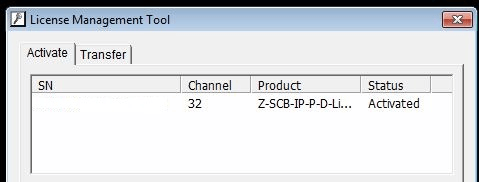
Step 9 – To add the second license D-ViewCam Plus 32 IVS Counting, repeat Step 4
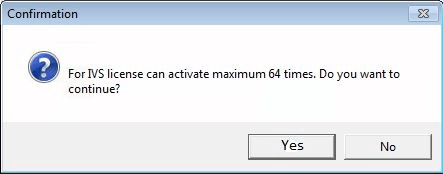
Click “Yes”
Click “Yes”
Step 10 – Once agreed, the system will commence again connection with the License Server
Click “OK”
Step 11 – Once updated, you should see the ALL licenses in “License Management Tool” window
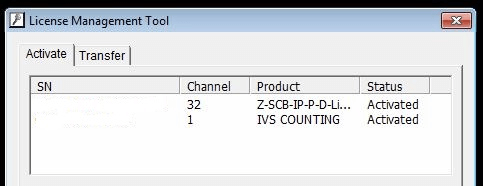
Step 12 – When you close “License Management Tool” you will be prompted that the program with be restarted
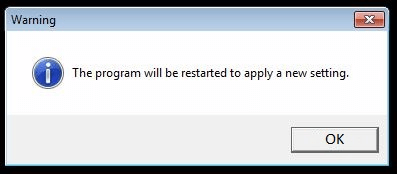
Click “OK”
Ti potrebbero interessare anche questi:
- Come attivare licenze in modo Offline - DCS-250 Leggi la risposta
- Come configurare l’Auto Backup con avviso per email – DCS-250 Leggi la risposta
- How to Change the Default Folder and Record to a Mapped Drive – DCS-250 Leggi la risposta
- How to Install Remote Desktop and Run Service – DCS-250 Leggi la risposta
- How to Playback Recordings and Export – DCS-250 Leggi la risposta
- How to Setup Event and Action – Tamper or Obscured View – DCS-250 Leggi la risposta
- How to Setup Event and Action with PTZ Camera – DCS-250 Leggi la risposta
- Come impostare Motion Detection - DCS-250 Leggi la risposta
- Come impostare Privacy Mask - DCS-250 Leggi la risposta
- How to Setup Video Analytics - Intelligent Video Surveillance – DCS-250 Leggi la risposta
- How to Setup a Recording Schedule based on Motion Detection and Record to a NAS – DCS-250 Leggi la risposta